Next.js uses file-system based routing, meaning you can use folders and files to define routes. This page will guide you through how to create layouts and pages, and link between them.
Creating a page
A page is UI that is rendered on a specific route. To create a page, add a page file inside the app directory and default export a React component. For example, to create an index page (/):

export default function Page() {
  return <h1>Hello Next.js!</h1>;
}
export default function Page() {
  return <h1>Hello Next.js!</h1>;
}
Creating a layout
A layout is UI that is shared between multiple pages. On navigation, layouts preserve state, remain interactive, and do not rerender.
You can define a layout by default exporting a React component from a layout file. The component should accept a children prop which can be a page or another layout.
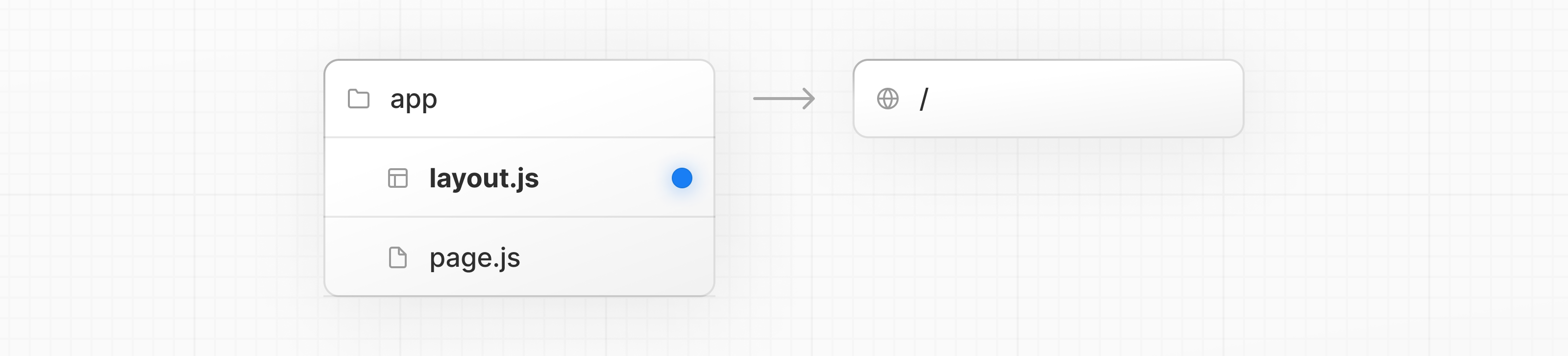
For example, to create a layout that accepts your index page as child, add a layout file inside the app directory:
export default function DashboardLayout({ children }: { children: React.ReactNode }) {
  return (
    <html lang="en">
      <body>
        {/* Layout UI */}
        {/* Place children where you want to render a page or nested layout */}
        <main>{children}</main>
      </body>
    </html>
  );
}
export default function DashboardLayout({ children }) {
  return (
    <html lang="en">
      <body>
        {/* Layout UI */}
        {/* Place children where you want to render a page or nested layout */}
        <main>{children}</main>
      </body>
    </html>
  );
}
The layout above is called a root layout because it's defined at the root of the app directory. The root layout is required and must contain html and body tags.
Creating a nested route
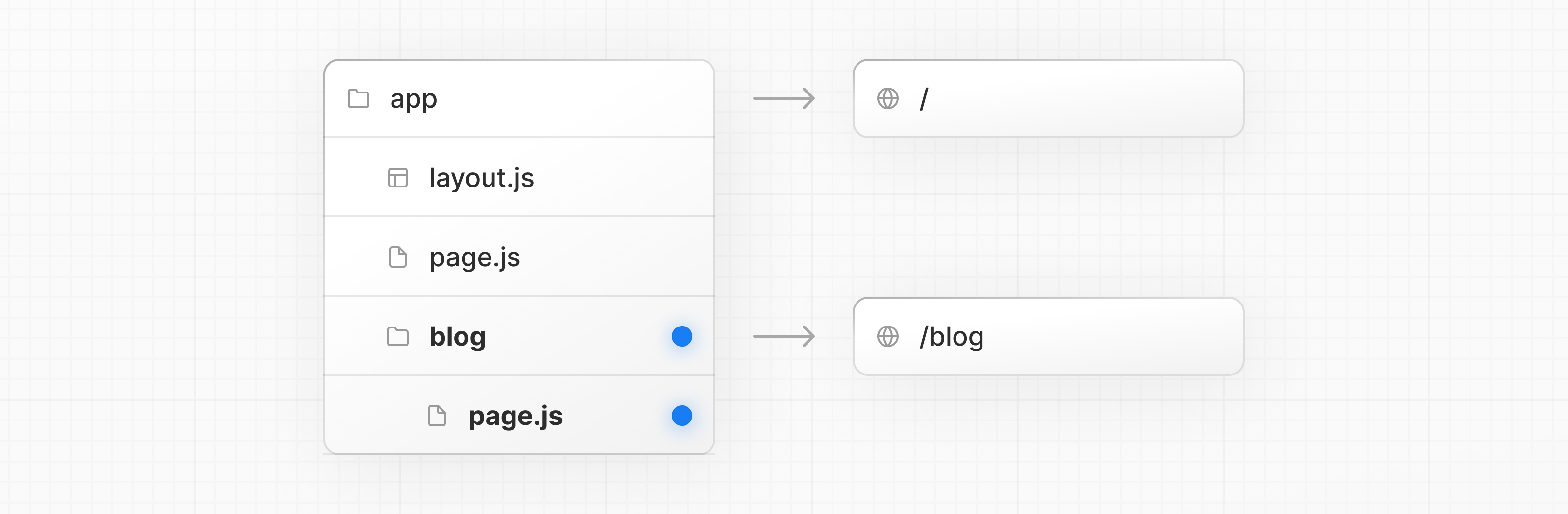
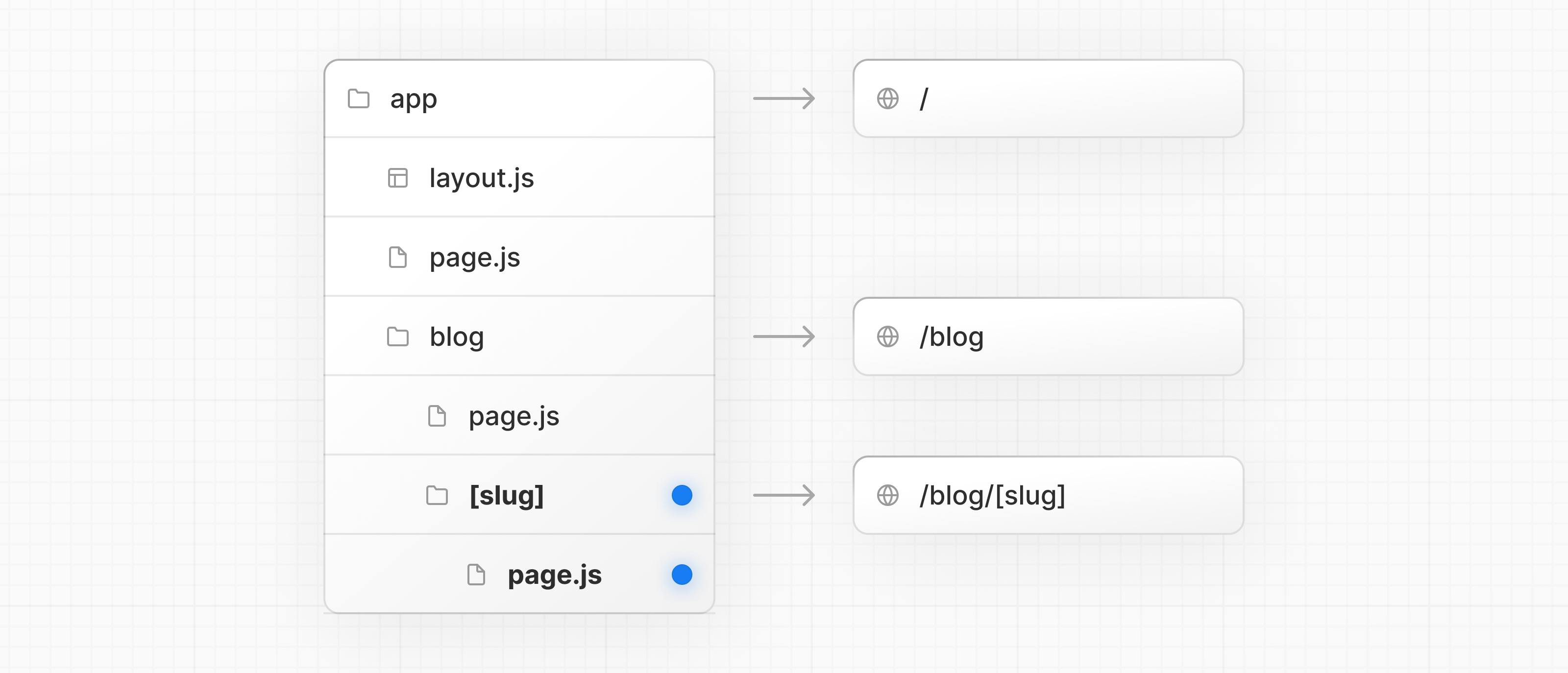
A nested route is a route composed of multiple URL segments. For example, the /blog/[slug] route is composed of three segments:
/(Root Segment)blog(Segment)[slug](Leaf Segment)
In Next.js:
- Folders are used to define the route segments that map to URL segments.
- Files (like
pageandlayout) are used to create UI that is shown for a segment.
To create nested routes, you can nest folders inside each other. For example, to add a route for /blog, create a folder called blog in the app directory. Then, to make /blog publicly accessible, add a page.tsx file:
// Dummy imports
import { getPosts } from '@/lib/posts';
import { Post } from '@/ui/post';

export default async function Page() {
  const posts = await getPosts();

  return (
    <ul>
      {posts.map((post) => (
        <Post key={post.id} post={post} />
      ))}
    </ul>
  );
}
// Dummy imports
import { getPosts } from '@/lib/posts';
import { Post } from '@/ui/post';

export default async function Page() {
  const posts = await getPosts();

  return (
    <ul>
      {posts.map((post) => (
        <Post key={post.id} post={post} />
      ))}
    </ul>
  );
}
You can continue nesting folders to create nested routes. For example, to create a route for a specific blog post, create a new [slug] folder inside blog and add a page file:
function generateStaticParams() {}

export default function Page() {
  return <h1>Hello, Blog Post Page!</h1>;
}
function generateStaticParams() {}

export default function Page() {
  return <h1>Hello, Blog Post Page!</h1>;
}
Wrapping a folder name in square brackets (e.g. [slug]) creates a dynamic route segment which is used to generate multiple pages from data. e.g. blog posts, product pages, etc.
Nesting layouts
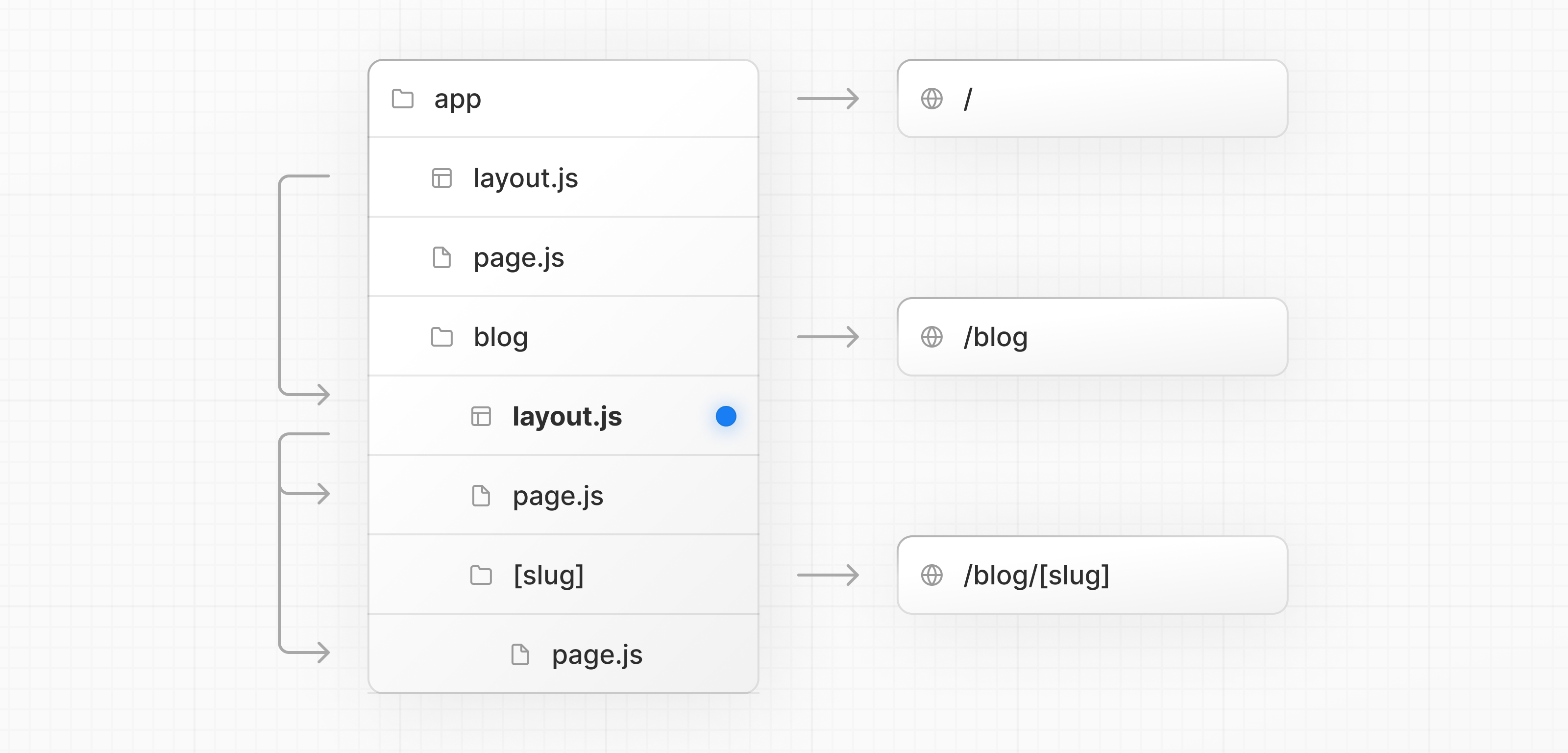
By default, layouts in the folder hierarchy are also nested, which means they wrap child layouts via their children prop. You can nest layouts by adding layout inside specific route segments (folders).
For example, to create a layout for the /blog route, add a new layout file inside the blog folder.
export default function BlogLayout({ children }: { children: React.ReactNode }) {
  return <section>{children}</section>;
}
export default function BlogLayout({ children }) {
  return <section>{children}</section>;
}
If you were to combine the two layouts above, the root layout (app/layout.js) would wrap the blog layout (app/blog/layout.js), which would wrap the blog (app/blog/page.js) and blog post page (app/blog/[slug]/page.js).
Creating a dynamic segment
Dynamic segments allow you to create routes that are generated from data. For example, instead of manually creating a route for each individual blog post, you can create a dynamic segment to generate the routes based on blog post data.
To create a dynamic segment, wrap the segment (folder) name in square brackets: [segmentName]. For example, in the app/blog/[slug]/page.tsx route, the [slug] is the dynamic segment.
export default async function BlogPostPage({ params }: { params: Promise<{ slug: string }> }) {
  const { slug } = await params;
  const post = await getPost(slug);

  return (
    <div>
      <h1>{post.title}</h1>
      <p>{post.content}</p>
    </div>
  );
}
export default async function BlogPostPage({ params }) {
  const { slug } = await params;
  const post = await getPost(slug);

  return (
    <div>
      <h1>{post.title}</h1>
      <p>{post.content}</p>
    </div>
  );
}
Learn more about Dynamic Segments and the params props.
Nested layouts within Dynamic Segments, can also access the params props.
Rendering with search params
In a Server Component page, you can access search parameters using the searchParams prop:
export default async function Page({
  searchParams,
}: {
  searchParams: Promise<{ [key: string]: string | string[] | undefined }>;
}) {
  const filters = (await searchParams).filters;
}
export default async function Page({ searchParams }) {
  const filters = (await searchParams).filters;
}
Using searchParams opts your page into dynamic rendering because it requires an incoming request to read the search parameters from.
Client Components can read search params using the useSearchParams hook.
Learn more about useSearchParams in statically rendered and dynamically rendered routes.
What to use and when
- Use the
searchParamsprop when you need search parameters to load data for the page (e.g. pagination, filtering from a database). - Use
useSearchParamswhen search parameters are used only on the client (e.g. filtering a list already loaded via props). - As a small optimization, you can use
new URLSearchParams(window.location.search)in callbacks or event handlers to read search params without triggering re-renders.
Linking between pages
You can use the <Link> component to navigate between routes. <Link> is a built-in Next.js component that extends the HTML <a> tag to provide prefetching and client-side navigation.
For example, to generate a list of blog posts, import <Link> from next/link and pass a href prop to the component:
import Link from 'next/link';

export default async function Post({ post }) {
  const posts = await getPosts();

  return (
    <ul>
      {posts.map((post) => (
        <li key={post.slug}>
          <Link href={`/blog/${post.slug}`}>{post.title}</Link>
        </li>
      ))}
    </ul>
  );
}
import Link from 'next/link';

export default async function Post({ post }) {
  const posts = await getPosts();

  return (
    <ul>
      {posts.map((post) => (
        <li key={post.slug}>
          <Link href={`/blog/${post.slug}`}>{post.title}</Link>
        </li>
      ))}
    </ul>
  );
}
Good to know:
<Link>is the primary way to navigate between routes in Next.js. You can also use theuseRouterhook for more advanced navigation.
Route Props Helpers
Next.js exposes utility types that infer params and named slots from your route structure:
- PageProps: Props for
pagecomponents, includingparamsandsearchParams. - LayoutProps: Props for
layoutcomponents, includingchildrenand any named slots (e.g. folders like@analytics).
These are globally available helpers, generated when running either next dev, next build or next typegen.
export default async function Page(props: PageProps<'/blog/[slug]'>) {
  const { slug } = await props.params;
  return <h1>Blog post: {slug}</h1>;
}
export default function Layout(props: LayoutProps<'/dashboard'>) {
  return (
    <section>
      {props.children}
      {/* If you have app/dashboard/@analytics, it appears as a typed slot: */}
      {/* {props.analytics} */}
    </section>
  );
}
Good to know
- Static routes resolve
paramsto{}.PageProps,LayoutPropsare global helpers — no imports required.- Types are generated during
next dev,next buildornext typegen.
Creating a page
각 폴더의 page.tsx 토글을 켜고 꺼보세요. 파일이 생기면 URL이 초록색으로 활성화되고, 제거하면 즉시 404로 바뀝니다. 이것이 “폴더가 있어도 page.tsx 없이는 URL이 존재하지 않는다”는 App Router의 핵심 규칙입니다.
page.tsx 토글로 URL 활성화/비활성화Creating a layout
파란 테두리 안의 세 페이지를 클릭하며 이동해보세요. 레이아웃 영역의 “네비게이션 횟수”가 리셋되지 않는 것을 확인할 수 있습니다. 이것이 layout이 페이지 전환 시 리렌더링되지 않고 state를 유지한다는 의미입니다.
layout.tsx — 이 영역은 네비게이션해도 유지됩니다홈 페이지의 콘텐츠입니다.
Creating a nested route
프리셋을 선택하거나 폴더명을 직접 수정해보세요. 각 레벨의 page.tsx 체크박스를 켜고 끄면 어떤 URL이 생성되거나 사라지는지 실시간으로 확인할 수 있습니다. 폴더 중첩이 곧 URL 세그먼트 중첩임을 체감할 수 있어요.
Nesting layouts
루트 레이아웃과 블로그 레이아웃 체크박스를 켜고 꺼보세요. 각 레이아웃이 children을 감싸는 방식으로 중첩되는 구조가 시각적으로 변합니다. 이것이 layout 파일들이 폴더 계층을 따라 자동으로 중첩되는 이유입니다.
Creating a dynamic segment
URL 입력란에 다양한 경로를 입력해보세요. [slug]처럼 대괄호로 감싼 세그먼트가 URL에서 실제 값을 캡처하는 것을 실시간으로 확인할 수 있습니다. 라우트 패턴도 직접 수정해서 여러 개의 동적 세그먼트를 실험해볼 수 있어요.
params.slug="my-first-post"const { slug } = await params
// slug = "my-first-post"Rendering with search params
세 가지 시나리오 중 하나를 선택해보세요. 각 상황에서 어떤 방식으로 search params를 읽어야 하는지와 그 이유를 코드 예시와 함께 바로 확인할 수 있습니다. 이것이 렌더링 환경(서버 vs 클라이언트)에 따라 API 선택이 달라지는 이유입니다.
서버 컴포넌트 page에서 searchParams prop을 사용합니다. 서버에서 직접 DB 쿼리에 활용할 수 있고, 페이지를 동적 렌더링으로 전환합니다.
// app/products/page.tsx (Server Component)
export default async function Page({ searchParams }) {
  const { page, category } = await searchParams
  const products = await db.find({ page, category })
  return <ProductList products={products} />
}
Linking between pages
<Link>와 <a> 모드를 전환한 뒤 목록 위에 마우스를 올리거나 클릭해보세요. Link 모드에서는 hover 시 prefetch 로그가 나타나고, 클릭해도 전체 새로고침이 없습니다. <a> 태그는 클릭할 때마다 전체 페이지를 리로드하는 차이를 확인할 수 있어요.
Route Props Helpers
라우트 경로를 입력하거나 예시를 선택해보세요. PageProps와 LayoutProps가 경로의 동적 세그먼트를 분석해서 올바른 타입을 자동 생성하는 것을 확인할 수 있습니다. import 없이 전역에서 사용 가능한 것이 이 헬퍼의 핵심입니다.
// app/blog/[slug]/page.tsx
export default async function Page(props: PageProps<'/blog/[slug]'>) {
  const { slug } = await props.params
  // params 타입: Promise<{
  //     slug: string
  // }>
  return <div>slug: {slug}</div>
}// app/blog/[slug]/layout.tsx
export default function Layout(props: LayoutProps<'/blog/[slug]'>) {
// children: React.ReactNode
// params 타입: Promise<{
// slug: string
// }>
return <section>{props.children}</section>
}next dev 또는 next build 실행 시 자동 생성됩니다. next typegen 명령으로 수동 생성도 가능합니다.Next.js uses file-system based routing, meaning you can use folders and files to define routes. This page will guide you through how to create layouts and pages, and link between them.
Creating a page
A page is UI that is rendered on a specific route. To create a page, add a page file inside the app directory and default export a React component. For example, to create an index page (/):
export default function Page() {
  return <h1>Hello Next.js!</h1>;
}
export default function Page() {
  return <h1>Hello Next.js!</h1>;
}
Creating a layout
A layout is UI that is shared between multiple pages. On navigation, layouts preserve state, remain interactive, and do not rerender.
You can define a layout by default exporting a React component from a layout file. The component should accept a children prop which can be a page or another layout.
For example, to create a layout that accepts your index page as child, add a layout file inside the app directory:
export default function DashboardLayout({ children }: { children: React.ReactNode }) {
  return (
    <html lang="en">
      <body>
        {/* Layout UI */}
        {/* Place children where you want to render a page or nested layout */}
        <main>{children}</main>
      </body>
    </html>
  );
}
export default function DashboardLayout({ children }) {
  return (
    <html lang="en">
      <body>
        {/* Layout UI */}
        {/* Place children where you want to render a page or nested layout */}
        <main>{children}</main>
      </body>
    </html>
  );
}
The layout above is called a root layout because it's defined at the root of the app directory. The root layout is required and must contain html and body tags.
Creating a nested route
A nested route is a route composed of multiple URL segments. For example, the /blog/[slug] route is composed of three segments:
/(Root Segment)blog(Segment)[slug](Leaf Segment)
In Next.js:
- Folders are used to define the route segments that map to URL segments.
- Files (like
pageandlayout) are used to create UI that is shown for a segment.
To create nested routes, you can nest folders inside each other. For example, to add a route for /blog, create a folder called blog in the app directory. Then, to make /blog publicly accessible, add a page.tsx file:
// Dummy imports
import { getPosts } from '@/lib/posts';
import { Post } from '@/ui/post';

export default async function Page() {
  const posts = await getPosts();

  return (
    <ul>
      {posts.map((post) => (
        <Post key={post.id} post={post} />
      ))}
    </ul>
  );
}
// Dummy imports
import { getPosts } from '@/lib/posts';
import { Post } from '@/ui/post';

export default async function Page() {
  const posts = await getPosts();

  return (
    <ul>
      {posts.map((post) => (
        <Post key={post.id} post={post} />
      ))}
    </ul>
  );
}
You can continue nesting folders to create nested routes. For example, to create a route for a specific blog post, create a new [slug] folder inside blog and add a page file:
function generateStaticParams() {}

export default function Page() {
  return <h1>Hello, Blog Post Page!</h1>;
}
function generateStaticParams() {}

export default function Page() {
  return <h1>Hello, Blog Post Page!</h1>;
}
Wrapping a folder name in square brackets (e.g. [slug]) creates a dynamic route segment which is used to generate multiple pages from data. e.g. blog posts, product pages, etc.
Nesting layouts
By default, layouts in the folder hierarchy are also nested, which means they wrap child layouts via their children prop. You can nest layouts by adding layout inside specific route segments (folders).
For example, to create a layout for the /blog route, add a new layout file inside the blog folder.
export default function BlogLayout({ children }: { children: React.ReactNode }) {
  return <section>{children}</section>;
}
export default function BlogLayout({ children }) {
  return <section>{children}</section>;
}
If you were to combine the two layouts above, the root layout (app/layout.js) would wrap the blog layout (app/blog/layout.js), which would wrap the blog (app/blog/page.js) and blog post page (app/blog/[slug]/page.js).
Creating a dynamic segment
Dynamic segments allow you to create routes that are generated from data. For example, instead of manually creating a route for each individual blog post, you can create a dynamic segment to generate the routes based on blog post data.
To create a dynamic segment, wrap the segment (folder) name in square brackets: [segmentName]. For example, in the app/blog/[slug]/page.tsx route, the [slug] is the dynamic segment.
export default async function BlogPostPage({ params }: { params: Promise<{ slug: string }> }) {
  const { slug } = await params;
  const post = await getPost(slug);

  return (
    <div>
      <h1>{post.title}</h1>
      <p>{post.content}</p>
    </div>
  );
}
export default async function BlogPostPage({ params }) {
  const { slug } = await params;
  const post = await getPost(slug);

  return (
    <div>
      <h1>{post.title}</h1>
      <p>{post.content}</p>
    </div>
  );
}
Learn more about Dynamic Segments and the params props.
Nested layouts within Dynamic Segments, can also access the params props.
Rendering with search params
In a Server Component page, you can access search parameters using the searchParams prop:
export default async function Page({
  searchParams,
}: {
  searchParams: Promise<{ [key: string]: string | string[] | undefined }>;
}) {
  const filters = (await searchParams).filters;
}
export default async function Page({ searchParams }) {
  const filters = (await searchParams).filters;
}
Using searchParams opts your page into dynamic rendering because it requires an incoming request to read the search parameters from.
Client Components can read search params using the useSearchParams hook.
Learn more about useSearchParams in statically rendered and dynamically rendered routes.
What to use and when
- Use the
searchParamsprop when you need search parameters to load data for the page (e.g. pagination, filtering from a database). - Use
useSearchParamswhen search parameters are used only on the client (e.g. filtering a list already loaded via props). - As a small optimization, you can use
new URLSearchParams(window.location.search)in callbacks or event handlers to read search params without triggering re-renders.
Linking between pages
You can use the <Link> component to navigate between routes. <Link> is a built-in Next.js component that extends the HTML <a> tag to provide prefetching and client-side navigation.
For example, to generate a list of blog posts, import <Link> from next/link and pass a href prop to the component:
import Link from 'next/link';

export default async function Post({ post }) {
  const posts = await getPosts();

  return (
    <ul>
      {posts.map((post) => (
        <li key={post.slug}>
          <Link href={`/blog/${post.slug}`}>{post.title}</Link>
        </li>
      ))}
    </ul>
  );
}
import Link from 'next/link';

export default async function Post({ post }) {
  const posts = await getPosts();

  return (
    <ul>
      {posts.map((post) => (
        <li key={post.slug}>
          <Link href={`/blog/${post.slug}`}>{post.title}</Link>
        </li>
      ))}
    </ul>
  );
}
Good to know:
<Link>is the primary way to navigate between routes in Next.js. You can also use theuseRouterhook for more advanced navigation.
Route Props Helpers
Next.js exposes utility types that infer params and named slots from your route structure:
- PageProps: Props for
pagecomponents, includingparamsandsearchParams. - LayoutProps: Props for
layoutcomponents, includingchildrenand any named slots (e.g. folders like@analytics).
These are globally available helpers, generated when running either next dev, next build or next typegen.
export default async function Page(props: PageProps<'/blog/[slug]'>) {
  const { slug } = await props.params;
  return <h1>Blog post: {slug}</h1>;
}
export default function Layout(props: LayoutProps<'/dashboard'>) {
  return (
    <section>
      {props.children}
      {/* If you have app/dashboard/@analytics, it appears as a typed slot: */}
      {/* {props.analytics} */}
    </section>
  );
}
Good to know
- Static routes resolve
paramsto{}.PageProps,LayoutPropsare global helpers — no imports required.- Types are generated during
next dev,next buildornext typegen.
Creating a page
각 폴더의 page.tsx 토글을 켜고 꺼보세요. 파일이 생기면 URL이 초록색으로 활성화되고, 제거하면 즉시 404로 바뀝니다. 이것이 “폴더가 있어도 page.tsx 없이는 URL이 존재하지 않는다”는 App Router의 핵심 규칙입니다.
page.tsx 토글로 URL 활성화/비활성화Creating a layout
파란 테두리 안의 세 페이지를 클릭하며 이동해보세요. 레이아웃 영역의 “네비게이션 횟수”가 리셋되지 않는 것을 확인할 수 있습니다. 이것이 layout이 페이지 전환 시 리렌더링되지 않고 state를 유지한다는 의미입니다.
layout.tsx — 이 영역은 네비게이션해도 유지됩니다홈 페이지의 콘텐츠입니다.
Creating a nested route
프리셋을 선택하거나 폴더명을 직접 수정해보세요. 각 레벨의 page.tsx 체크박스를 켜고 끄면 어떤 URL이 생성되거나 사라지는지 실시간으로 확인할 수 있습니다. 폴더 중첩이 곧 URL 세그먼트 중첩임을 체감할 수 있어요.
Nesting layouts
루트 레이아웃과 블로그 레이아웃 체크박스를 켜고 꺼보세요. 각 레이아웃이 children을 감싸는 방식으로 중첩되는 구조가 시각적으로 변합니다. 이것이 layout 파일들이 폴더 계층을 따라 자동으로 중첩되는 이유입니다.
Creating a dynamic segment
URL 입력란에 다양한 경로를 입력해보세요. [slug]처럼 대괄호로 감싼 세그먼트가 URL에서 실제 값을 캡처하는 것을 실시간으로 확인할 수 있습니다. 라우트 패턴도 직접 수정해서 여러 개의 동적 세그먼트를 실험해볼 수 있어요.
params.slug="my-first-post"const { slug } = await params
// slug = "my-first-post"Rendering with search params
세 가지 시나리오 중 하나를 선택해보세요. 각 상황에서 어떤 방식으로 search params를 읽어야 하는지와 그 이유를 코드 예시와 함께 바로 확인할 수 있습니다. 이것이 렌더링 환경(서버 vs 클라이언트)에 따라 API 선택이 달라지는 이유입니다.
서버 컴포넌트 page에서 searchParams prop을 사용합니다. 서버에서 직접 DB 쿼리에 활용할 수 있고, 페이지를 동적 렌더링으로 전환합니다.
// app/products/page.tsx (Server Component)
export default async function Page({ searchParams }) {
  const { page, category } = await searchParams
  const products = await db.find({ page, category })
  return <ProductList products={products} />
}
Linking between pages
<Link>와 <a> 모드를 전환한 뒤 목록 위에 마우스를 올리거나 클릭해보세요. Link 모드에서는 hover 시 prefetch 로그가 나타나고, 클릭해도 전체 새로고침이 없습니다. <a> 태그는 클릭할 때마다 전체 페이지를 리로드하는 차이를 확인할 수 있어요.
Route Props Helpers
라우트 경로를 입력하거나 예시를 선택해보세요. PageProps와 LayoutProps가 경로의 동적 세그먼트를 분석해서 올바른 타입을 자동 생성하는 것을 확인할 수 있습니다. import 없이 전역에서 사용 가능한 것이 이 헬퍼의 핵심입니다.
// app/blog/[slug]/page.tsx
export default async function Page(props: PageProps<'/blog/[slug]'>) {
  const { slug } = await props.params
  // params 타입: Promise<{
  //     slug: string
  // }>
  return <div>slug: {slug}</div>
}// app/blog/[slug]/layout.tsx
export default function Layout(props: LayoutProps<'/blog/[slug]'>) {
// children: React.ReactNode
// params 타입: Promise<{
// slug: string
// }>
return <section>{props.children}</section>
}next dev 또는 next build 실행 시 자동 생성됩니다. next typegen 명령으로 수동 생성도 가능합니다.